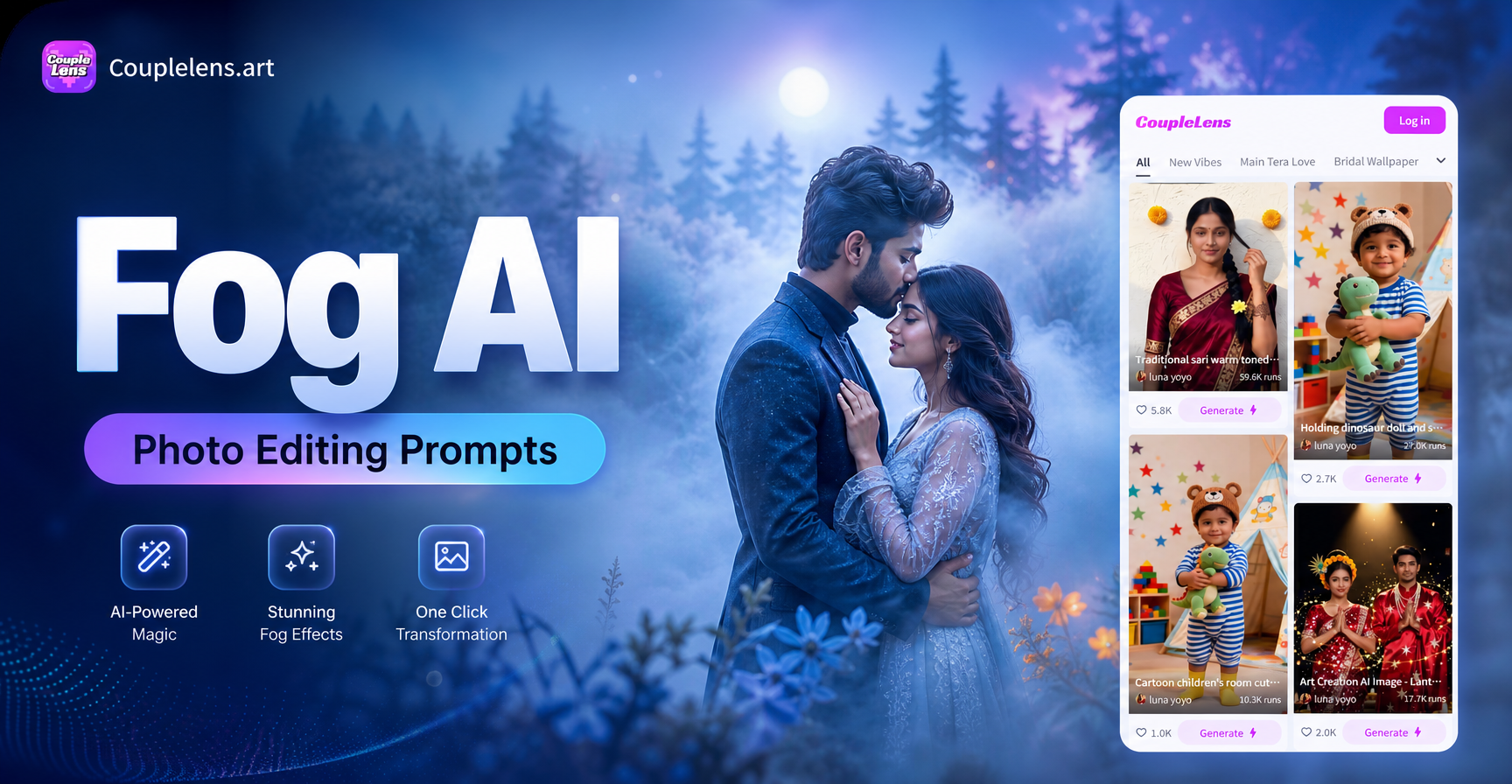
Fog turns an ordinary photo into a quiet, cinematic scene. With the right fog AI photo editing prompts, you can add layered mist, soft light, and a dreamlike mood to any image without waiting for perfect weather. This guide explains how to write effective prompts, shares ready to use examples, and shows how CoupleLens makes fog editing simple on your phone.
What Is Fog AI Photo Editing?
Fog AI photo editing uses artificial intelligence to add realistic mist, haze, and atmospheric depth to digital images. Instead of manually brushing in fog with complex software, you describe the effect you want in a text prompt or choose a preset filter. The AI then understands the scene and renders a natural looking fog layer that reacts to light and distance. This approach is faster than traditional editing and often produces more convincing results because the AI adjusts density, color temperature, and edge softness automatically.
With CoupleLens, fog editing happens entirely on your phone. You can start from a text description to generate a completely new foggy scene, or upload an existing photo and use image to image technology to add mist while keeping your subject intact. The app also provides a huge library of style filters, so you can quickly shift from a soft dreamy fog to a dark noir atmosphere without rewriting your prompt.
Why Fog Effects Make Photos More Compelling
Fog does more than hide details. It changes the emotional tone of a photo. A foggy forest feels mysterious. A foggy city street feels noir and nostalgic. Fog also creates depth by separating foreground, middle ground, and background elements. This separation makes your subject stand out while the surroundings fade into soft silhouettes.
For portrait photographers, fog can wrap around a face and create a gentle, ethereal look. For landscape photographers, fog introduces mood and a sense of scale. When you use AI to add fog, you gain full control over these effects without needing a fog machine or early morning shoot. You can choose exactly where the mist sits, how dense it is, and what color it reflects, all from a simple prompt.
How to Write Effective Fog AI Photo Editing Prompts
A strong fog prompt describes more than just the word fog. You need to include the type of fog, the light quality, the mood, and the location. The more specific you are, the better the AI can match your vision. Here are key elements to include:
- Fog density: Use words like thin mist, light haze, thick fog, or rolling fog bank.
- Light direction: Mention backlight, soft dawn light, muted overcast, or glowing street lamps.
- Color palette: Ask for cool blue tones, warm golden fog, or desaturated grays.
- Subject and setting: Describe the main subject and environment clearly, such as a lone hiker on a mountain path or a vintage car on a wet road.
- Mood and style: Add terms like dreamy, melancholic, cinematic, eerie, or romantic to guide the overall feel.
For best results, combine these elements into one flowing prompt. For example, instead of typing just foggy forest, write a dense foggy forest at dawn, soft blue backlight, tall dark pines fading into mist, quiet and mysterious mood. That detail helps the AI understand your intent and produce a more accurate edit.
Common Mistakes to Avoid When Writing Fog Prompts
Many beginners run into the same problems when generating fog effects. Avoiding these mistakes will save you time and improve your results.
- Being too vague. A prompt that only says foggy photo leaves too much to chance. Always include at least one detail about light, density, and setting.
- Ignoring the original image. If you are editing an existing photo, the AI needs to understand what to keep and what to change. Mention your subject clearly, such as keep the woman sharp or preserve the red car.
- Overloading the prompt. Too many conflicting details can confuse the AI. Stick to one main mood and three to five descriptive elements per prompt.
- Forgetting the ground level. Fog often looks most natural when it hugs the ground. Include phrases like low lying fog near the ground or mist rolling over the field to anchor the effect.
- Using the wrong filter. A bright anime filter may fight against a moody fog prompt. Match your style filter to the desired tone for coherent results.
15 Fog AI Photo Editing Prompts to Try
Use these fog AI photo editing prompts as starting points. You can copy them into CoupleLens and adjust the details to match your photo.
- Prompt 1: A lone figure walking through a dense foggy forest, soft diffused light, dark pine trees fading into mist, mysterious and quiet atmosphere
- Prompt 2: Portrait of a woman standing in a foggy field at dawn, ethereal backlight, soft golden haze around her hair, dreamy and romantic mood
- Prompt 3: City street at night covered in thick fog, neon signs reflecting off wet pavement, noir style, cinematic composition
- Prompt 4: An old stone bridge crossing a misty river, fog rolling over the water, muted blue and gray tones, serene landscape
- Prompt 5: A vintage car parked on a lonely road with heavy fog, headlights glowing softly, melancholic atmosphere, desaturated colors
- Prompt 6: Mountain valley filled with a sea of fog at sunrise, jagged peaks rising above the clouds, warm golden light on the summits
- Prompt 7: A hiker walking along a cliff path with thick fog below, dramatic scale, cool morning light, adventurous mood
- Prompt 8: A child holding a red umbrella in a foggy park, soft contrast, muted greens and grays, nostalgic feeling
- Prompt 9: A wooden cabin in a fog covered forest, warm window light glowing through the mist, cozy and isolated atmosphere
- Prompt 10: A lake at dawn with thin fog hovering over the water, mirror reflections, calm and minimal composition
- Prompt 11: A lighthouse on a rocky shore with heavy sea fog, beam of light cutting through the mist, dramatic coastal scene
- Prompt 12: A group of deer in a misty meadow at sunrise, soft backlight, gentle haze, wildlife photography style
- Prompt 13: An empty train platform with fog drifting between the tracks, dim station lights, cinematic and lonely mood
- Prompt 14: A person in a long coat walking away from the camera into thick fog, back view, mysterious narrative
- Prompt 15: A small boat floating on a still lake covered in fog, single soft light source, minimalist and peaceful
You can use these prompts with the text to image generator or apply them as image to image edits. If you already have a photo, open the image to image tool, upload your picture, and then enter one of these prompts to add fog while preserving the original subject.
Step by Step Guide to Editing Fog Photos with CoupleLens
CoupleLens is an all in one AI design app available on Google Play. It combines text to image, image to image, and video tools with a huge library of style filters. You do not need any design experience to get started. Follow these steps to apply fog effects to your photos.
- Download and open CoupleLens. Install the app from Google Play and create a free account.
- Choose your editing mode. Select text to image to generate a new fog scene from scratch, or choose image to image to edit an existing photo.
- Upload your photo or enter your prompt. If using image to image, upload a clear image of your subject. If using text to image, type one of the fog prompts above.
- Pick a fog style filter. Browse the style library and select a filter that matches your desired mood, such as cinematic, dreamy, or film noir.
- Generate and adjust. Tap generate and wait a few seconds. If the fog looks too thick or too thin, tweak your prompt with more specific density or light terms and generate again.
- Save and share. Download your final image in high resolution and share it on social media or use it in your creative projects.
Because CoupleLens runs entirely on your phone, you can experiment with fog effects anywhere. The app also supports multi person photos and video generation, so you can bring the same foggy atmosphere to moving images.
Pro Tips for Realistic Fog Results
Even with a great prompt, small adjustments can make your fog edit look more natural. Follow these expert tips to improve your results.
- Match the fog color to your light source. Warm light produces golden or amber fog. Cool light produces blue or gray fog. Keep the colors consistent.
- Use depth cues. Ask for foreground, middle ground, and background separation in your prompt. This helps the AI create a layered scene instead of a flat white overlay.
- Keep the subject sharp. For portraits, include the phrase sharp focus on the face or clear subject outlines so the AI does not blur your main element too much.
- Start with lighter fog. Terms like thin mist or light haze are easier to control than thick fog. You can always increase density in a follow up prompt.
- Reference a photography style. Words like cinematic, fine art, or moody landscape photography guide the AI toward a specific visual language and improve overall composition.
Creative Uses for Fog Edited Photos
Fog edited images are more than just pretty pictures. They can serve many creative and professional purposes. Use them as atmospheric backgrounds for posters, album covers, or book covers. Add fog to product photos to create a premium, mysterious aesthetic. Enhance travel photos with mist to evoke the feeling of early morning adventures.
For content creators, fog effects can make thumbnails and social posts stand out in a crowded feed. You can also use fog styled portraits in fashion editorials or personal branding to add a dramatic edge. With image to video tools in CoupleLens, you can animate a static foggy photo to make the mist gently drift, which is ideal for short form videos and reels.
Conclusion
Fog AI photo editing prompts unlock a powerful way to transform ordinary images into atmospheric, emotional works of art. By learning how to describe fog density, light, and mood, you can guide the AI to produce realistic and creative results on your phone. CoupleLens makes this process simple with its intuitive app, massive filter library, and support for both photo and video generation. Download CoupleLens today, try one of the 15 prompts above, and start creating your own misty masterpieces.