Looking for the best cartoon AI photo editing prompts to turn your ordinary photos into playful, animated-style images? You are in the right place. This guide shares a hand-picked collection of effective prompts that work with AI photo editing tools like CoupleLens and similar apps. Whether you want a classic 2D cartoon look, a Studio Ghibli anime feel, or a Pixar-style 3D render, these prompts are ready to copy and use. No design skills required.
Why Use Cartoon AI Photo Editing Prompts?
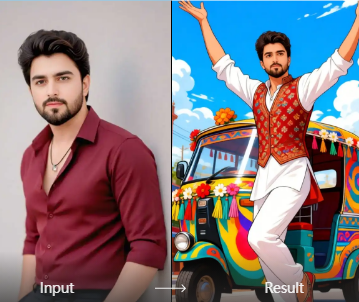
Cartoon photo editing has become one of the most popular creative trends online. People love seeing themselves and their pets transformed into charming, exaggerated characters. AI tools make this possible in seconds, but the quality of your result depends heavily on how you describe the transformation. A vague prompt like 'make it cartoon' often produces messy or generic output. A specific prompt that names a style, color palette, and level of detail gives the AI clear guidance and leads to far better images. That is why learning a few strong prompts can completely change your experience.
These prompts are designed to be used in image-to-image editing. You upload a real photo, paste one of the prompts below, and let the AI do the rest. You can adjust the wording to match your subject, background, or preferred cartoon genre.
Essential Cartoon AI Photo Editing Prompts
Below you will find a variety of prompts grouped by style. Each one is self-contained and ready to use. Replace the phrase 'this photo' with a description of your specific image if needed, or simply upload your photo and use the prompt as is.
Classic 2D Cartoon Style
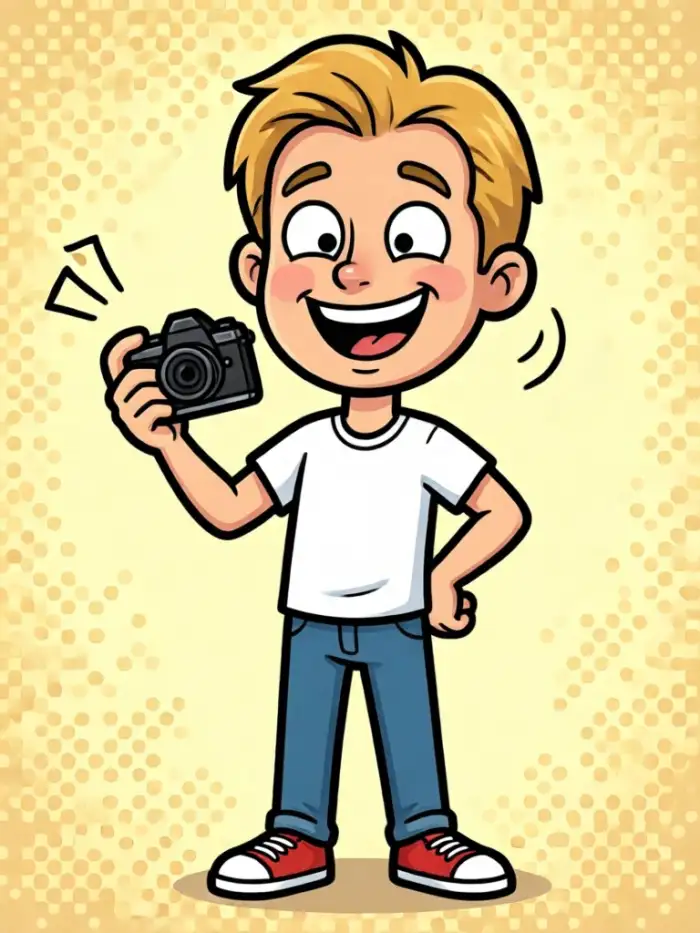
Turn this photo into a cheerful 2D cartoon character with bold black outlines, flat vibrant colors, and a big friendly smile. Use a comic book style with clean shapes and minimal shading.
Reimagine this portrait as a classic Saturday morning cartoon. Keep the facial features recognizable but simplify them into rounded shapes. Add bright primary colors and a simple solid background.
Anime and Manga Style
Transform this photo into a Studio Ghibli anime still. Soft watercolor background, gentle lighting, expressive eyes, and a hand-drawn feel. Keep the character's original pose and clothing.
Edit this image into a modern shonen manga panel. Add dramatic speed lines, cel shading, and intense eyes. Use a black and white ink style with one accent color like red or blue.
3D Pixar Style
Convert this photo into a 3D Pixar style character. Smooth skin, glossy highlights, big expressive eyes, and a colorful background. Render in high quality with soft global illumination.
Make this person look like a character from a 3D animated movie. Emphasize large rounded eyes, a warm smile, and soft hair. Use a bright, cheerful color palette and a slightly blurred background for depth.
Watercolor Cartoon Style
Turn this photo into a hand-painted watercolor cartoon. Soft edges, light washes of color, and a subtle paper texture. Keep the subject recognizable but give the entire scene a dreamy, artistic atmosphere.
Recreate this image as a whimsical watercolor illustration. Blend pastel pinks, blues, and yellows. Add gentle splashes and light ink outlines. Make the background look like a wet-on-wet watercolor wash.
Retro Comic Book Style
Edit this photo into a retro comic book panel. Thick ink lines, halftone dot shading, and bold primary colors. Give the subject a heroic pose and add a speech bubble if appropriate.
Transform this portrait into a pop art style cartoon. Use bright saturated colors, strong black outlines, and a Ben-Day dot texture. Add a dynamic comic background with action lines.
Chibi and Kawaii Style
Turn this selfie into a cute chibi cartoon character. Oversized head, small body, pastel color palette, and sparkly eyes. Add a soft pink background with tiny stars and hearts.
Make this photo look like a kawaii sticker. Simplify the person into a super-deformed character with a round face, tiny hands, and a cheerful expression. Use soft pastel shades and a clean white outline.
Cyberpunk Cartoon Style
Apply a cyberpunk cartoon filter to this photo. Neon colors, a futuristic city background, glowing outlines, and a high-tech anime style. Add glowing purple and cyan accents to the character's clothing and eyes.
Turn this image into a cyberpunk graphic novel cover. Use dark shadows, neon rim lighting, and reflective surfaces. Keep the subject's pose but add sci-fi elements like holograms or robotic details.
How to Adapt These Prompts for Your Photos
You do not have to use these prompts word for word. In fact, the best results often come from small customizations. Start by replacing the phrase 'this photo' with a brief description of your image if the AI tool allows text input along with the image. For example, instead of 'this photo', you could write 'a young woman with long brown hair wearing a red jacket'. This adds extra context and helps the AI preserve important details.
You can also combine elements from different prompts. If you want a watercolor anime style, merge the watercolor instructions with the anime prompt. Just keep the description clear and avoid stacking too many conflicting styles. One or two modifiers is usually enough.
If the AI output distorts the face too much, add a phrase like 'keep the facial features accurate and recognizable' or 'preserve the original likeness'. Most modern AI photo editors understand these instructions.
Common Mistakes and How to Fix Weak Results
Even with a great prompt, things can go wrong. Here are the most frequent issues and how to solve them.
Vague style description. Saying 'make it cartoon' is too broad. Specify a genre such as 'anime', 'watercolor', 'Pixar', or 'comic book'.
Ignoring the background. If you do not mention the background, the AI may keep the original photo background, which can clash with the cartoon style. Always add a simple background instruction, like 'replace the background with a solid pastel color' or 'set the scene in a sunny park'.
Overly complex scene. Cartoon styles work best when the composition is simple. If your photo has a busy background or many small details, the AI may get confused. Crop the image to focus on the main subject before applying the prompt.
Low resolution source. AI photo editors need enough detail to recognize facial features. Use a clear, well-lit photo with the face visible. Avoid extreme low-light or heavily compressed images.
Forgetting to adjust intensity. Some tools let you control how strong the cartoon effect is. If the result looks too plastic, reduce the intensity. If it looks too subtle, increase it.
Final Tips for Better Cartoon Edits
Experimentation is your best friend. Run the same prompt on three different photos and compare the results. You will quickly learn which styles suit your face, pet, or landscape. Save your favorite prompts in a notes app so you can reuse them.
Take advantage of style filters. Many AI apps, including CoupleLens, offer built-in cartoon filters that you can combine with your custom prompts for even more control. Start with a filter, then add a prompt to fine-tune the result.
Share your creations online and tag them with relevant hashtags. This not only builds your personal brand but also helps you discover other creators who are experimenting with similar cartoon styles.
Conclusion
Cartoon AI photo editing prompts are the fastest way to turn ordinary pictures into playful, shareable art. With the prompts in this guide, you have a strong starting point for dozens of creative transformations. Remember to be specific, keep your source photos clean, and do not hesitate to tweak the wording. Now open your favorite AI photo editor, upload a photo, and start creating your own cartoon masterpieces.