Comparison Infographic
Pick a Comparison Infographic Filter Pack
CoupleLens ships with curated style packs tuned for visual side by side and before and after comparison work.
Key Features of Comparison Infographic Style
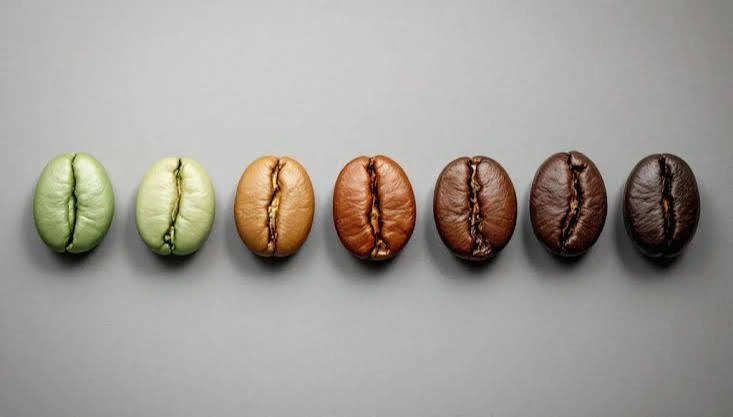
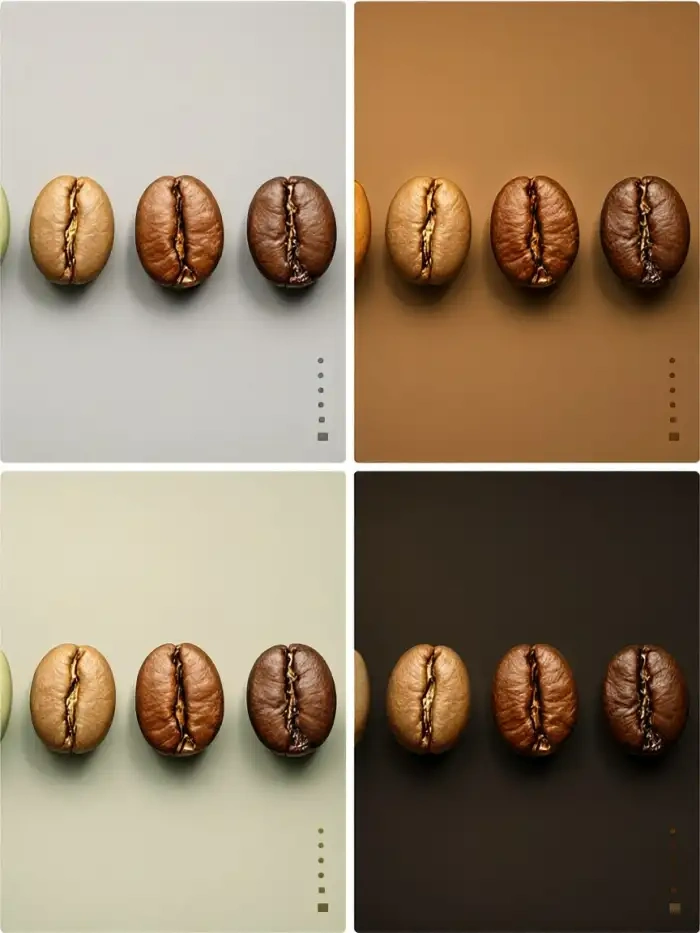
CoupleLens turns a single source photo into a finished side by side comparison infographic easily.
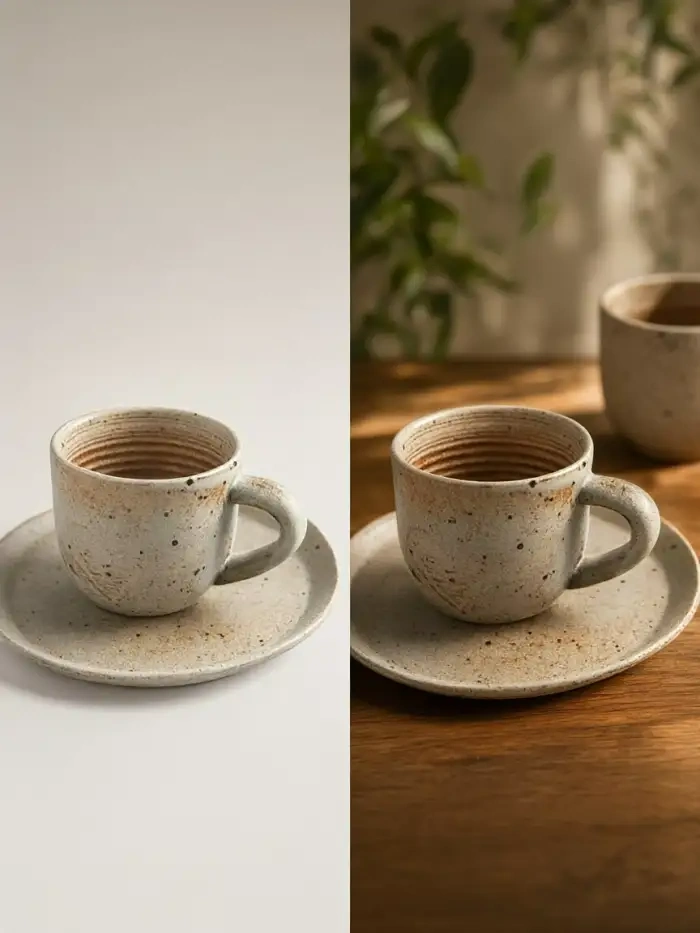
 Before
 After
One Tap Comparison Reveal
CoupleLens builds a comparison infographic from one photo in one tap. The app renders the original look on one half and the new style on the other half, with matched lighting and matched framing.
 Before
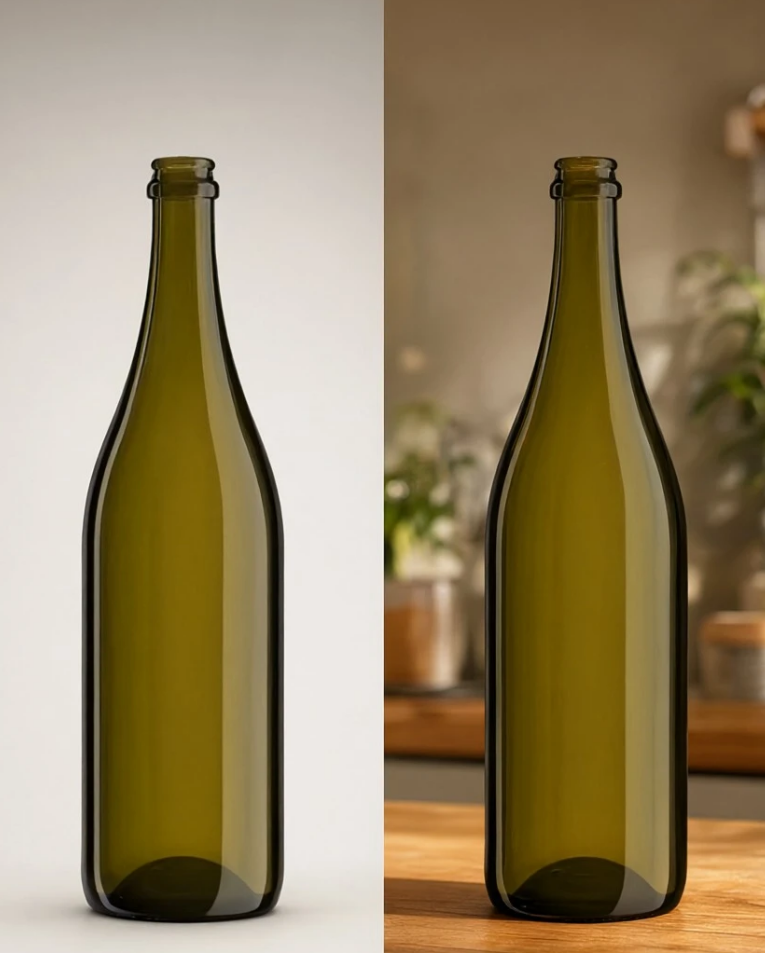 After
Side by Side Comparison
CoupleLens keeps every face in your source photo intact when it builds a side by side style comparison. The app separates each subject, maps facial features across both halves of the layout.
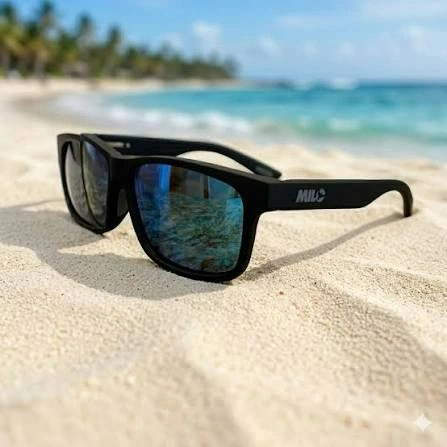 Before
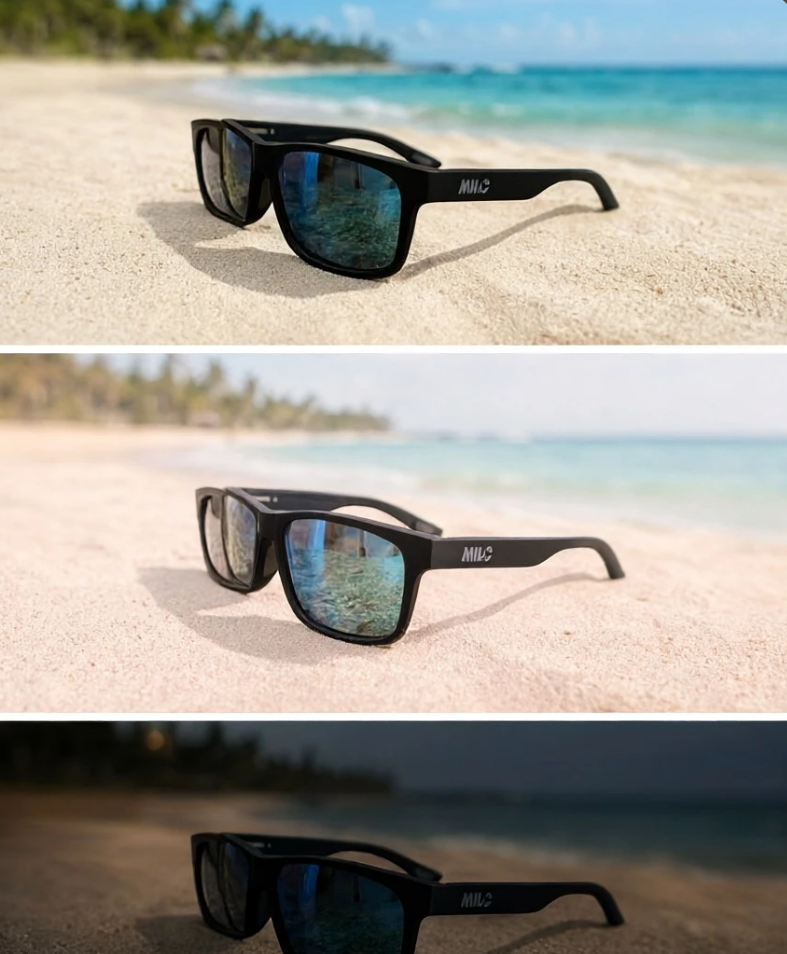 After
25,000 Ready Made Comparison Style
Skip the prompt writing and the empty canvas. CoupleLens ships with over 25,000 ready made templates that already know how to pair two looks for a side by side style comparison. Every filter is a finished starting point, not a blank box.
How to Create a Comparison Infographic on CoupleLens?
The whole comparison infographic flow lives inside the CoupleLens mobile app and takes three quick steps from install to share.
Step 01.
Open Google Play, search CoupleLens, and install the app. The full comparison infographic toolkit is on the home screen the moment you sign in.
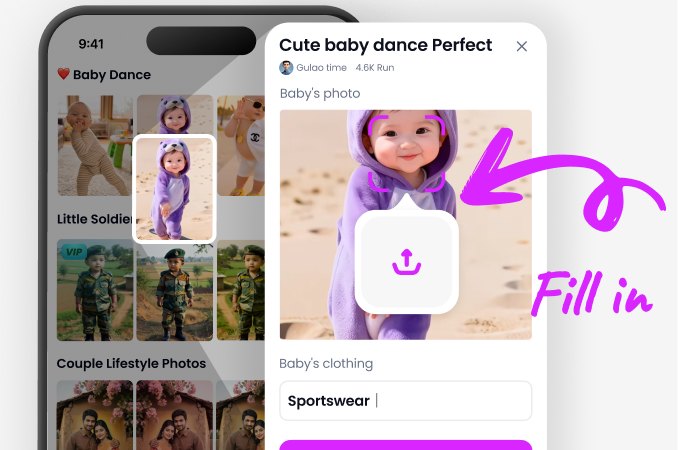
Step 02.
Open the filter library, choose a comparison pack, and upload your source photo.
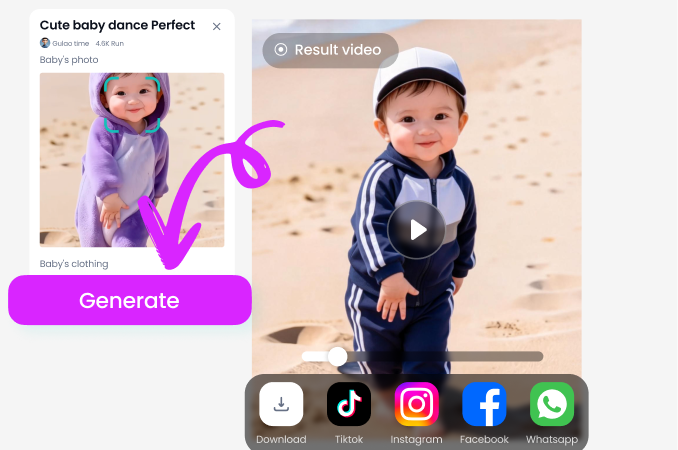
Step 03.
Download the finished comparison infographic or post it straight to the in app community and your socials from the same screen.
Use CoupleLens for Your Next Comparison Infographic
CoupleLens is built for the kind of comparison infographic that lives on a feed, not in a slide deck. The mobile first flow cuts the time between idea and post. The 25,000 ready made templates remove the blank canvas problem. The multi subject face lock keeps real people recognizable on both sides of the visual side by side. And because every step happens inside the app, your source photo, your style pick, and your finished comparison infographic all stay in one place, ready to post the moment the render finishes.

Watch the CoupleLens Comparison Infographic
These shorts walkthrough shows the full CoupleLens flow of running comparison infographic filters on a real phone.
What Our Users Say About Comparison Infographic Style
The CoupleLens mobile flow saved me a full round of email back and forth.
I tested CoupleLens for a client preview and the side by side style comparison came out cleaner than anything I could build in Lightroom. Both faces stayed sharp on both sides, the lighting matched, and the client signed off the package the same evening.
CoupleLens is now the first tab I open when I have a new photo idea.
I make a lot of visual side by side content for Reels and TikTok, and CoupleLens is the first app that handles two real faces in a style transfer without melting one into the other. My engagement rate on comparison infographic posts went up the week I switched.
CoupleLens does it on the phone in a single tap and the face lock is real.
I run a small agency and we use CoupleLens for visual side by side content across four client accounts. The comparison infographic filter packs cover most of the briefs we get, and the render time is fast enough that we can react to a trend the same hour it pops.
Frequently Asked Questions
These answers cover the most common questions about side by side style work, multi subject face lock, and the mobile flow.
More Topics You May Like
If a comparison infographic in CoupleLens is your thing, these next reads cover other visual side by side ideas the app handles well.

Best AI Anime Generators for Photo and Text Art on CoupleLens

80S Video AI Generator: Make Retro 1980s Clips on Your Phone

Best Anime Character Creators That Turn Selfies into Anime Art on Your Phone
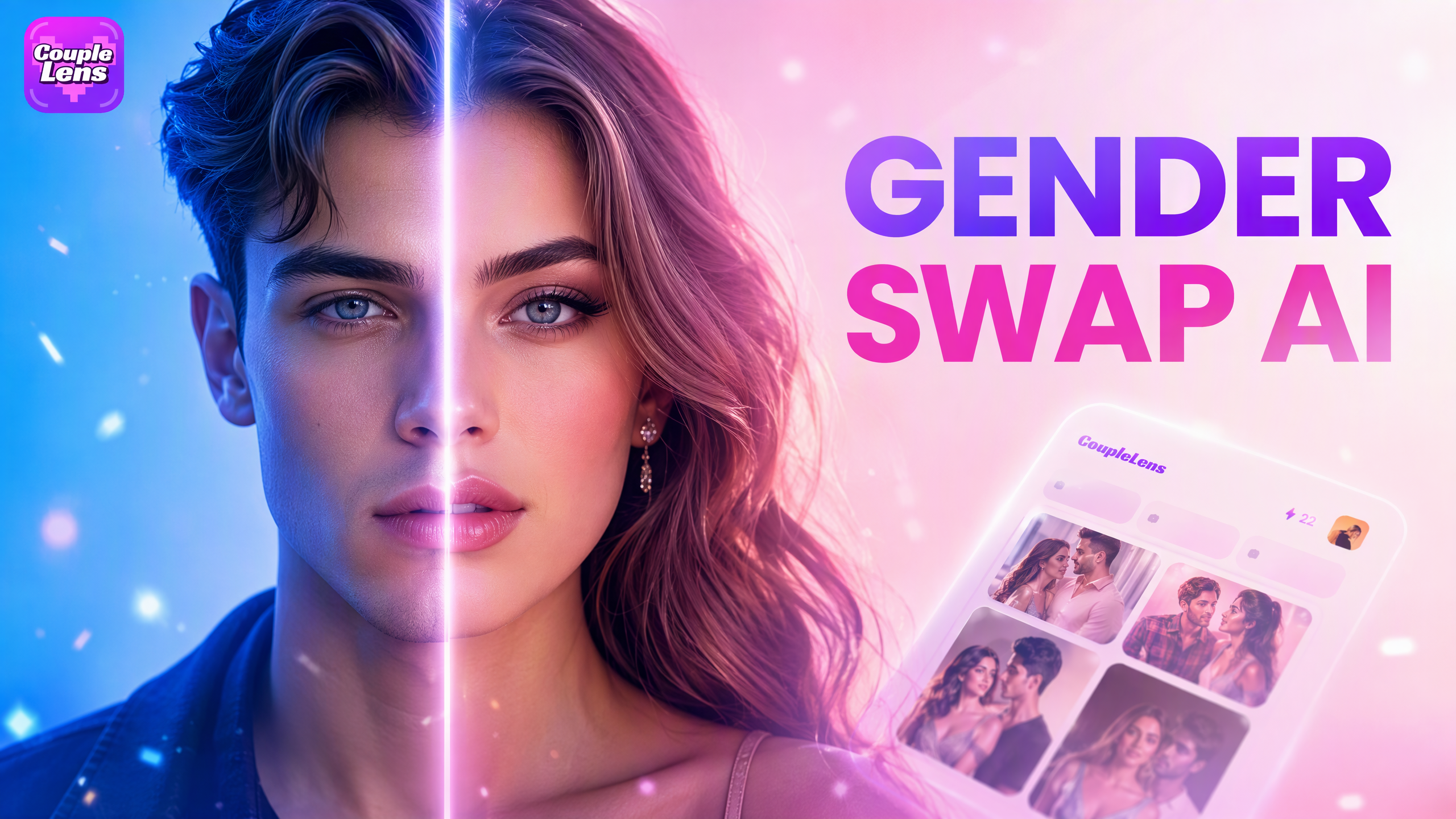
Best AI Gender Swap Tools for Realistic and Fun Transformations 2026
Best AI Anime Generators for Photo and Text Art on CoupleLens
80S Video AI Generator: Make Retro 1980s Clips on Your Phone
Best Anime Character Creators That Turn Selfies into Anime Art on Your Phone
Best AI Gender Swap Tools for Realistic and Fun Transformations 2026
Make Your First Comparison Infographic
Stop building visual side by side posts in a desktop editor. CoupleLens puts the full comparison infographic flow on your phone.
Make Your First Comparison Infographic
Stop building visual side by side posts in a desktop editor. CoupleLens puts the full comparison infographic flow on your phone.